Using Data Object Explorers
From a data object explorer page, you can begin exploring performance information about your monitored resources.
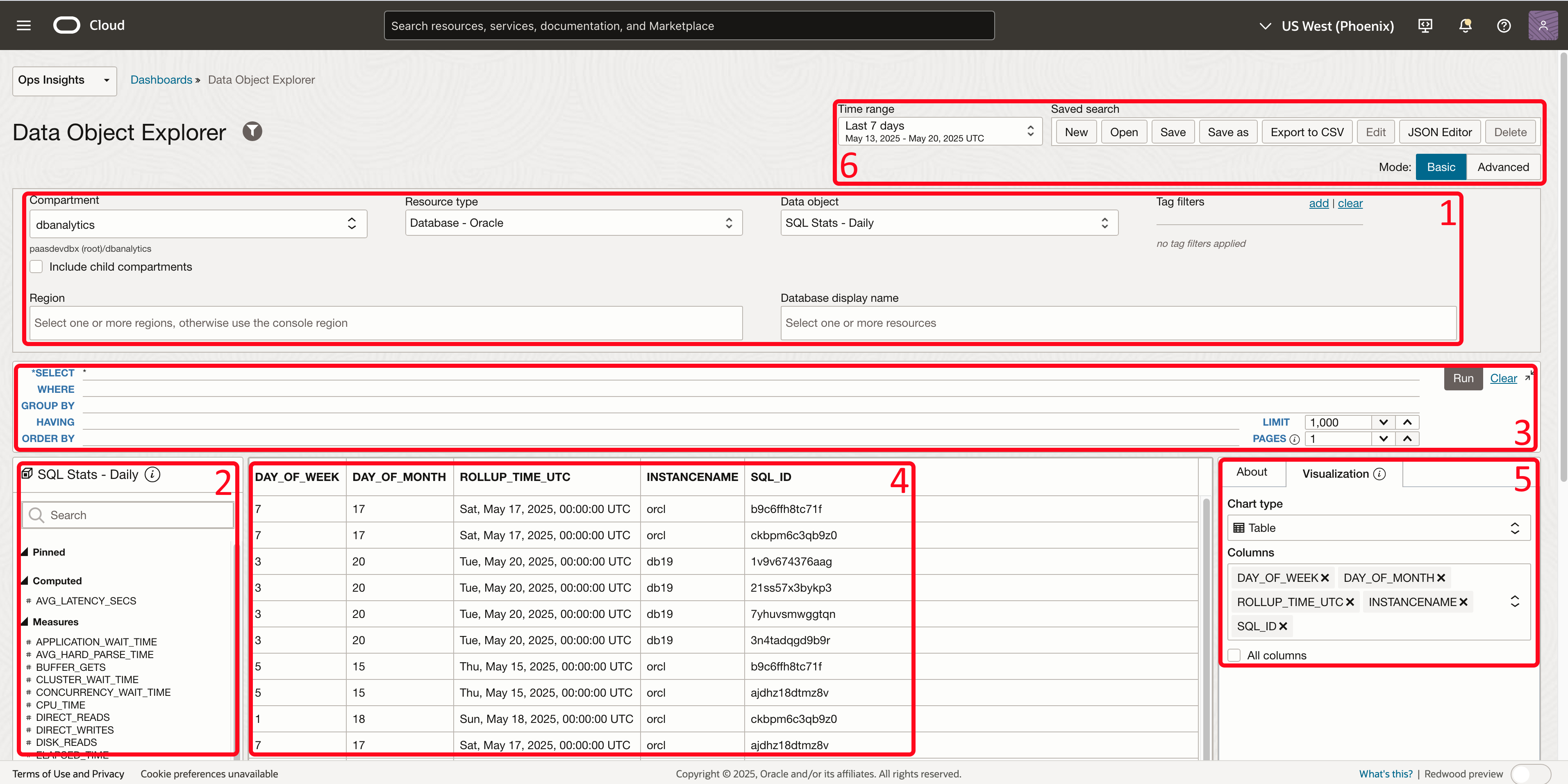
The following table and the Basic mode graphic show the functional regions of the UI in Basic mode.
| Region | Description |
|---|---|
| 1 | Time range, Compartment, Resource type, Data object, Region, Resource display name, and Tags: Allow you to define the scope of your session. |
| 2 | Attributes list: Select the attributes you're interested in exploring and add them to the query. |
| 3 | Query text entry: Manually enter the query to extract data you're interested in. The type-ahead feature helps you construct the query by providing in-context values. |
| 4 | Query results/raw data: All data returned by the query in tabular format. |
| 5 | Visualization center: Manipulate the raw data into an intuitive visualization. |
| 6 | Saved search actions: Perform various actions such as saving, sharing, and exporting SQL queries.
Mode: Allows you to select between Basic and Advanced SQL query creation mode. |
The following illustration shows the SQL Explorer UI with Basic SQL query editor selected. In this mode the SQL query is created with a SELECT statement you construct, this has a limited function query optimized to run against the selected data object and extract the most useful data with minimal complexity. Full range of SQL SELECT statement operations will not be compatible with the data object explorers and will generate an error when run. The UI guides you through SELECT statement creation.
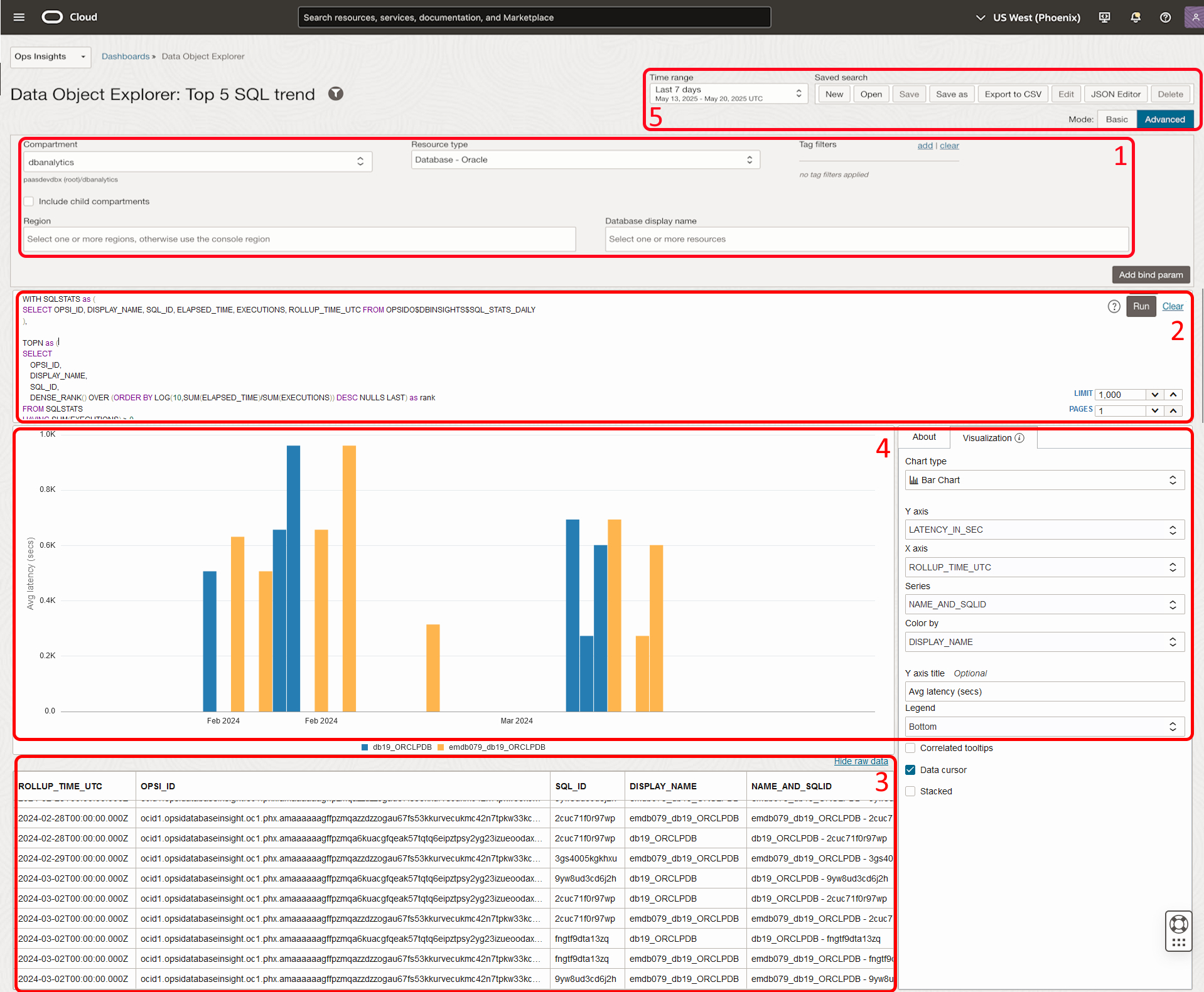
The following illustration shows the SQL Explorer UI with Advanced query editor selected. In this mode the SQL query box is shown as a free-text editor allowing you to create SELECT SQL queries of your own design, standard SQL SELECT statement operations are available in this mode.