Forecast Backtesting
Allows you to compare historical forecasts for time periods over which actual data is collected and quantify the deviation between historical and forecasted trends. This lets you easily test the accuracy of forecasted trends and gain confidence in forecasts by allowing you to:
- Assess the sensitivity of forecasts to training range selection
- Assess the sensitivity of forecasts to outliers
- Assess the accuracy of longer-range forecasts
Forecast Backtesting UI
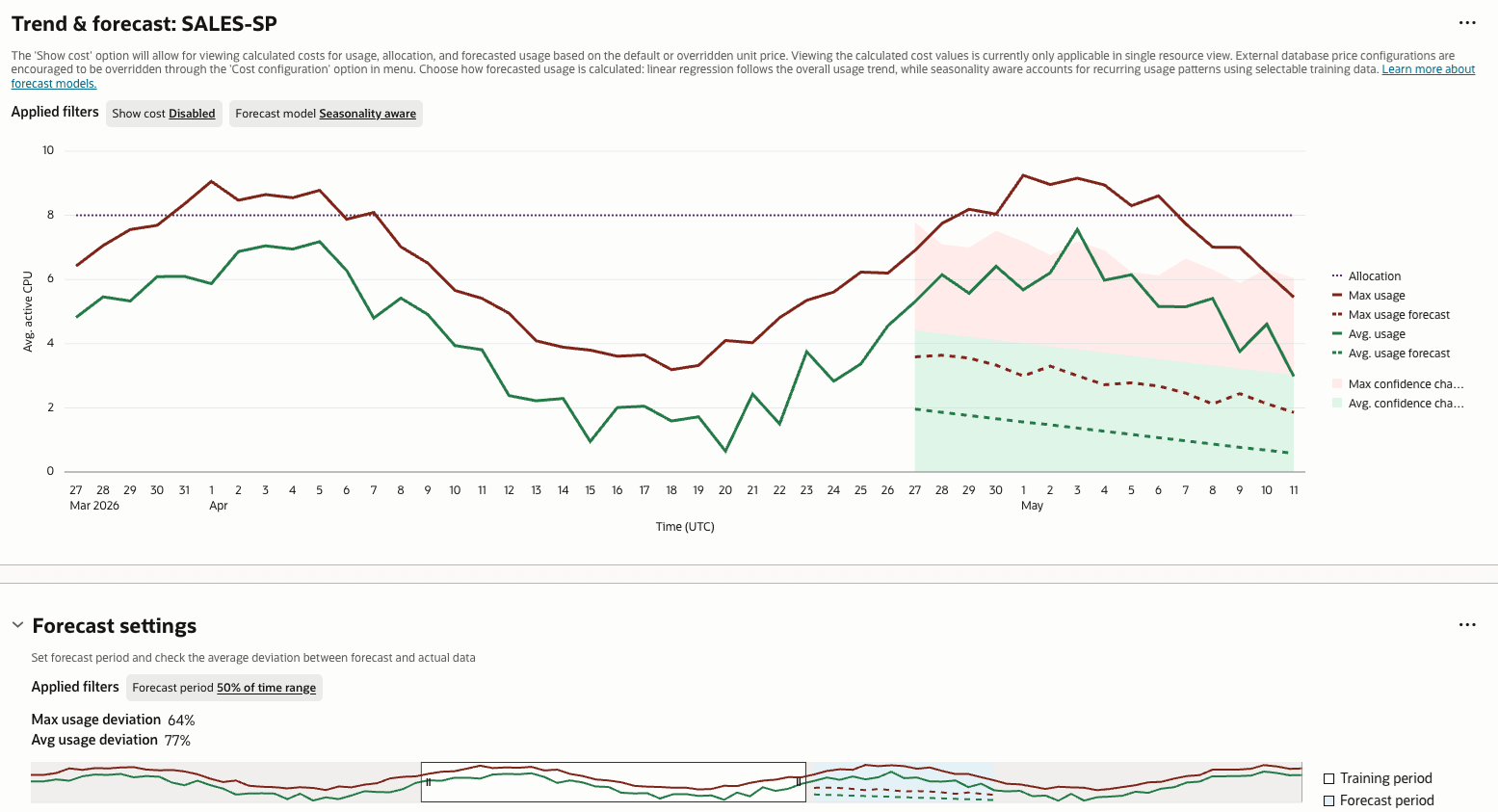
You perform Forecast Backtesting via Capacity Planning (CPU, Storage, Memory, I/O) for database and host resources. Immediately below the Trend & forecast chart is Forecast settings. Here, you set the Forecast period, which determines how far into the future to predict a trend, and the Training period, which determines the historical data used to forecast a trend. Changes made to Forecast settings are immediately reflected in the Trend & forecast chart.
You can move, expand, or contract the Training period selector to isolate the historical data that is most predictive for accurate forecasting. For example, you might want to exclude time periods that contain anomalous data spikes, which can affect predictive analysis and increase deviation between actual and predicted trends.
The forecast period begins immediately after the training period ends. More than just allowing you to set when the forecast should begin, the selector lets you begin the forecast period at a point in the past (backtesting), thus allowing you test how accurate the forecast will be based on how accurately it predicts a known historical trend. By default, Ops Insights creates a forecast period of 1/2 of the training period. You can set this to a specific number of days (45, 90, 180, and 365).
To get a quantitative look at how accurate the forecast is, hover your cursor over Avg usage deviation in the Forecast settings pane to view the average percentage deviation between forecast and actual data.
To clear all forecast settings and start over, click the Actions menu in the upper-right corner of the Forecast settings section, and then select Reset.