Compare CPU Utilization Between Databases
You can compare CPU usage across multiple databases by clicking the Aggregate tab. Viewing the summary of resource utilization across all databases lets you identify points in time where there may have been unexpected spikes in resource utilization.
Aggregate Treemap
When the Aggregate tab is selected in the CPU details page, the top half of the page displays a treemap of all databases enabled for Ops Insights in the compartment. By default, the chart shows you the CPU breakdown by individual database, which lets you compare how your different, individual databases are using their resources. To compare CPU resource usage across multiple databases, you can group the databases by Database type, Utilization level, CDB, Host, VM cluster, Exadata, and Free-form and Defined tags.
The treemap visualization shows the total compartment (or cross-compartment hierarchy) database fleet as a collection of rectangles dividing the entire visual canvas and sized in proportion to a sizing metric. Each database is a rectangle and relative sizes of rectangles are easily compared. The entire treemap represents the compartment total in the sizing metric, so the decomposition of fleet totals by database is the fundamental basis of this visualization. For example, the CPU utilization and the percentage change are represented visually, through the size and color of the cells, respectively. Cells that are larger in size utilize more CPU resource than smaller cells. The largest cell would be that of the databases using the most CPU resources. The color of the cells is determined by the percentage change in the CPU resources used by the databases.
Selecting a specific group amalgamates data for all members of the group to generate the Trend & forecast chart, which allows you to view forecasted utilization for the particular resource along with the current utilization trend. You can also click on a single member of a group to display trending and forecasting for a single database.
CPU Treemap Grouping
By default the CPU treemap shows all databases as the group, meaning there is only a single group composed of all databases in the compartment, and each database cell area sized proportionally to the sizing metric.
The treemap can be organized as a two-level hierarchy by selecting an option in the Grouping applied filter. Here, the treemap is divided first into groups and then into individual cells within the groups. This allows group size comparisons in addition to cell size.
The following options are available for Grouping:
- Database type
- Utilization level
- CDB
- Host
- VM cluster
- Exadata
- Created by
- Free-form tags
- Defined tags
Grouping by database type allows usage and allocation footprints to be compared by database type, while grouping by utilization level allows rapid evaluation of over-and-under-utilized allocation footprints. For more information on grouping tags see: Group by Tags.
CPU Treemap Sizing
Two sizing metrics are offered for the Treemap:
- Usage (avg. active CPUs) – Larger database cells are bigger consumers of CPU. This sizing is especially useful in CPU-metered cloud settings as it is effectively the relative “burn rate” of those databases.
- Allocation (CPU) – The allocated CPUs available to the database by OCI. Database cells are sized by CPU allocation. For “hard allocation” scenarios this is the relative fixed CPU cost of databases.
These two options permit users of both Autonomous AI as well as on-premises and dedicated databases to assess the relative costs vs. utilization levels of their database fleet, as the differing cost models are both covered.
CPU Treemap Coloring
The CPU treemap can be colored using the following two options:
- Utilization (%) - Avg usage as a percentage of Max allocation over the time interval
- Usage change (%) - Percentage change in linear trend of Avg usage over the time interval
The colors for Utilization (%) are shades of green (CPU branding) from light to dark in increasing quartiles: 0-25%, 25-50%, 50-75%, >75%.
The colors for Usage change (%) use two color palettes. Positive changes in usage are colored in shades of green (CPU), light to dark with increasing positive values. Negative changes in usage are colored in shades of amber, light to dark with increasing negative values. This scheme is a bit more complex but captures the crucial distinction of positive from negative as well as the degree of change in either direction.
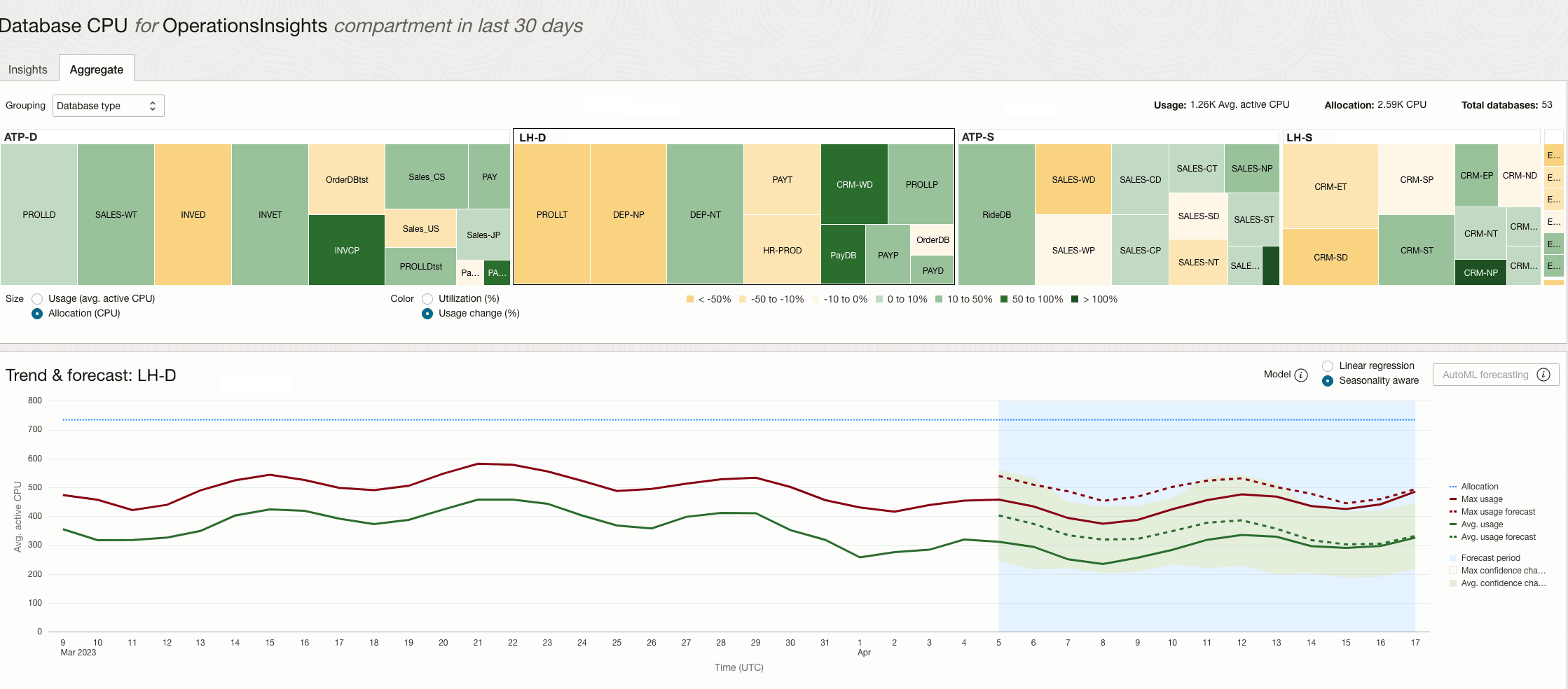
In this example, the Aggregate tab is selected. The treemap is grouped by Database type, treemap sizing is set to Allocation (CPU), and color is set to Usage change (%). The view shows database groups such as ATP-D, LH-D, ATP-S, and LH-S.
The treemap lets you compare allocation and usage change across database types and across individual databases within each group. Larger cells represent databases with higher CPU allocation, and the cell colors indicate the percentage change in usage. For example, ATP-D and LH-D occupy larger portions of the treemap than ATP-S and LH-S. You can also drill down to individual databases within a group to analyze their specific trends and forecasts.