Purchase
Learn how to purchase Oracle AI Database@AWS in the AWS Marketplace.
If you have a private offer and Oracle has emailed you to let you know the offer is ready for purchase, follow the instructions in this section to complete the purchase in the AWS console. -
In the AWS console, search for Oracle Database@AWS and go to the product page, which has a View private offers link that directs you to AWS Marketplace.
Important
If your organization restricts purchases to a private AWS marketplace, see 4. Marketplace Access to Oracle AI Database@AWS in the prerequisites section of this documentation.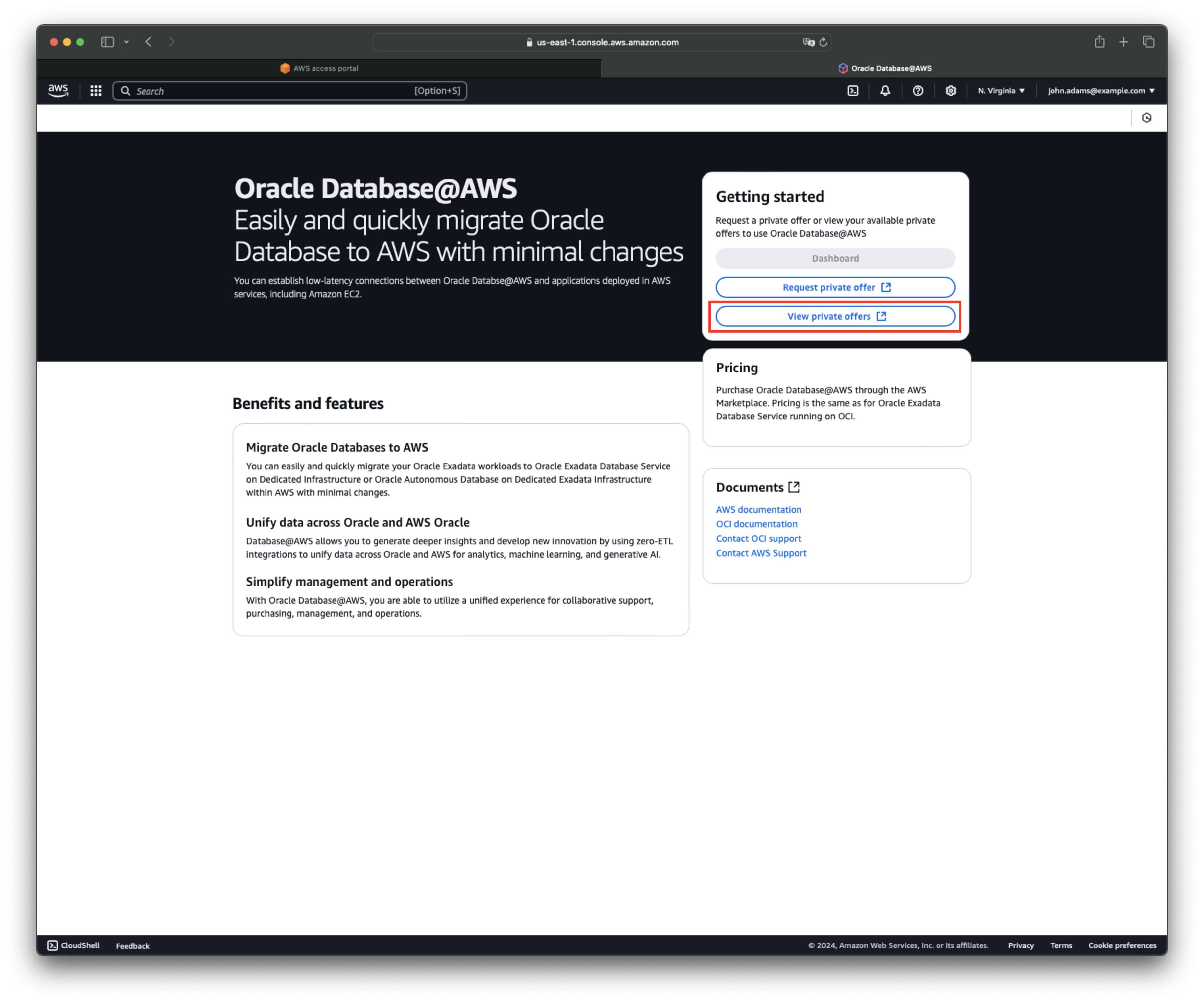
-
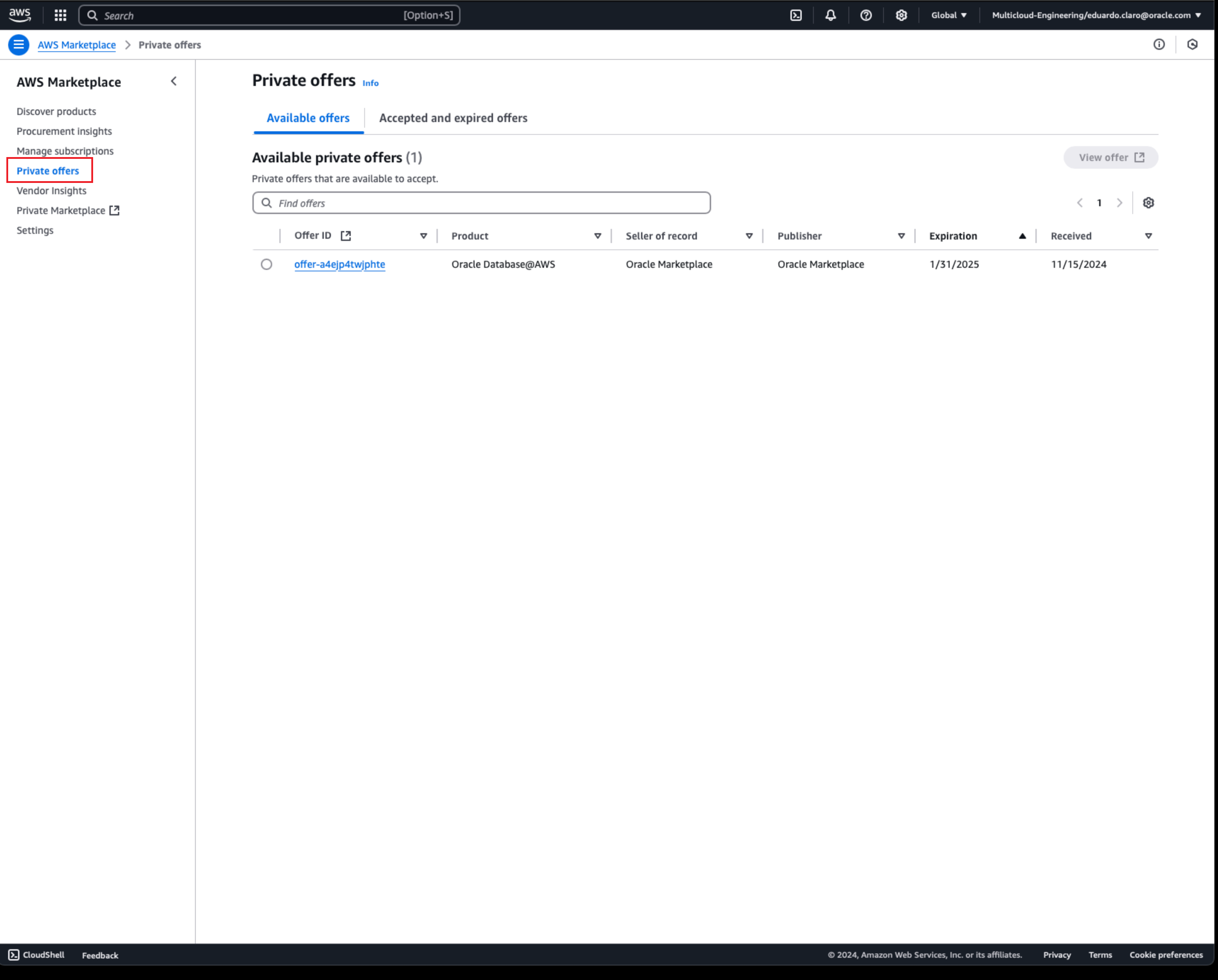
Under AWS Marketplace, select Private offers.
-
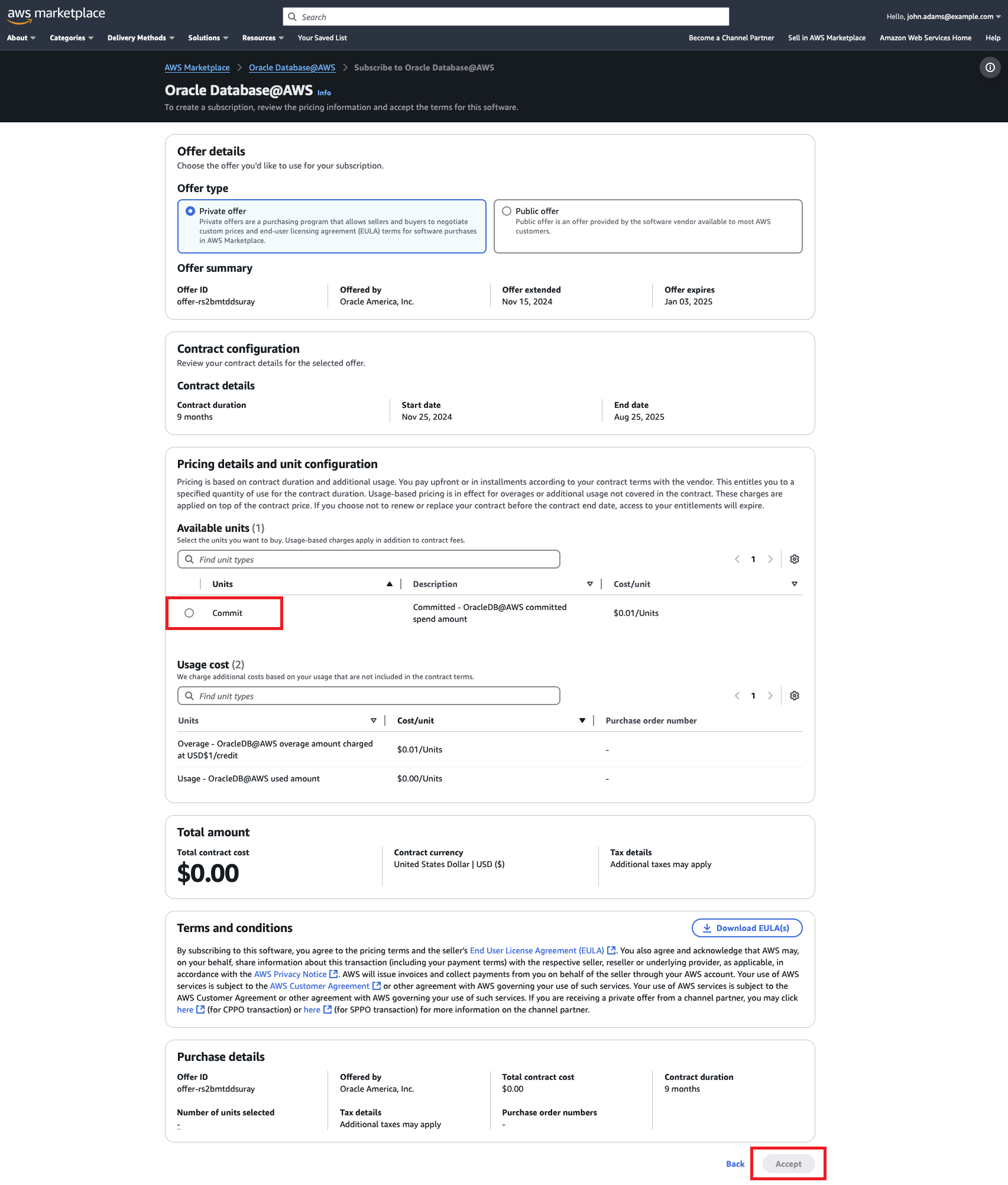
Review the details of your offer, and confirm that the Offer type is Private offer. Under Available units, select Commit, then select Accept.
After a few seconds, a message confirms that the purchase of Oracle AI Database@AWS is complete.
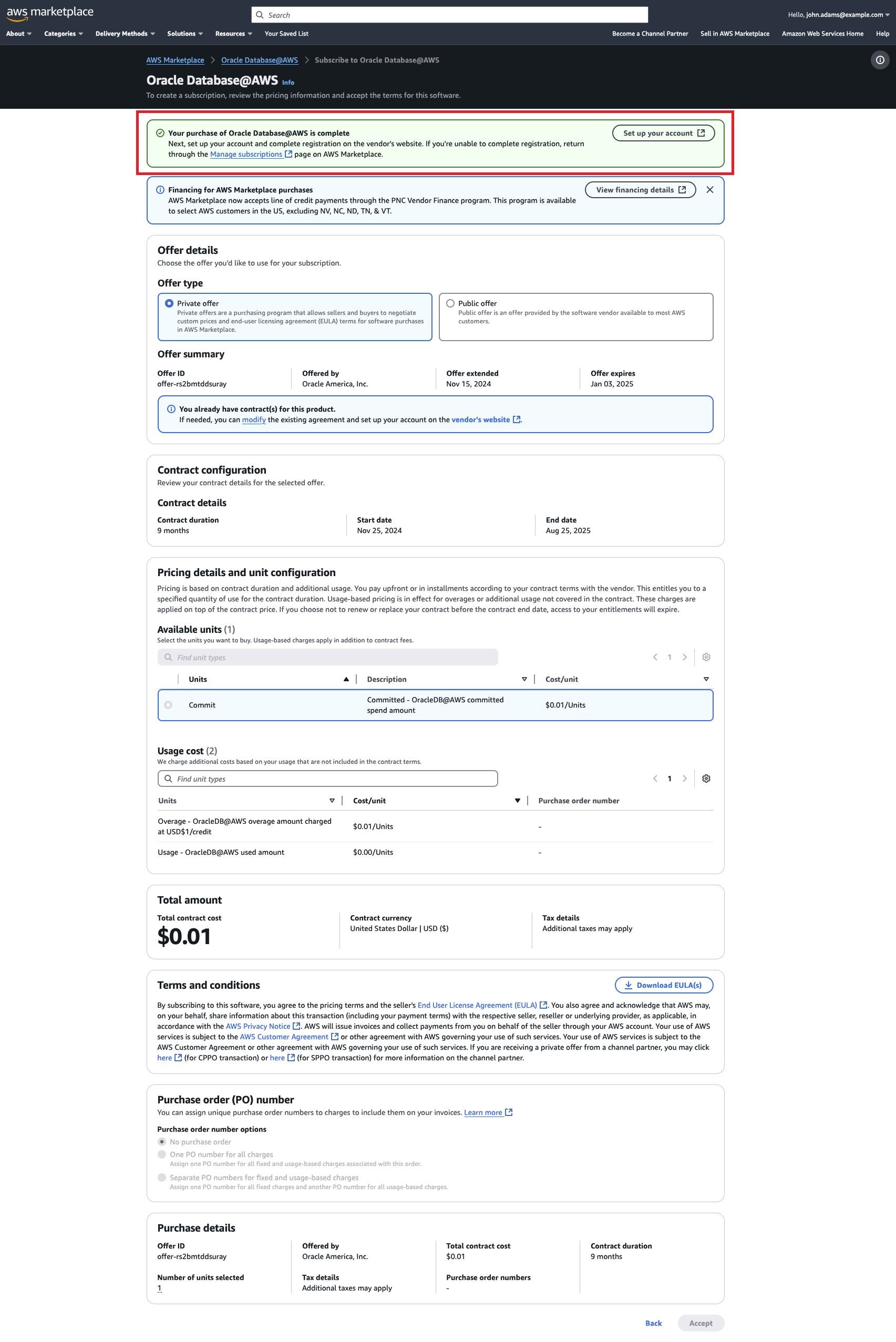
The offer appears under Accepted and expired offers (Private offers) in AWS Marketplace.
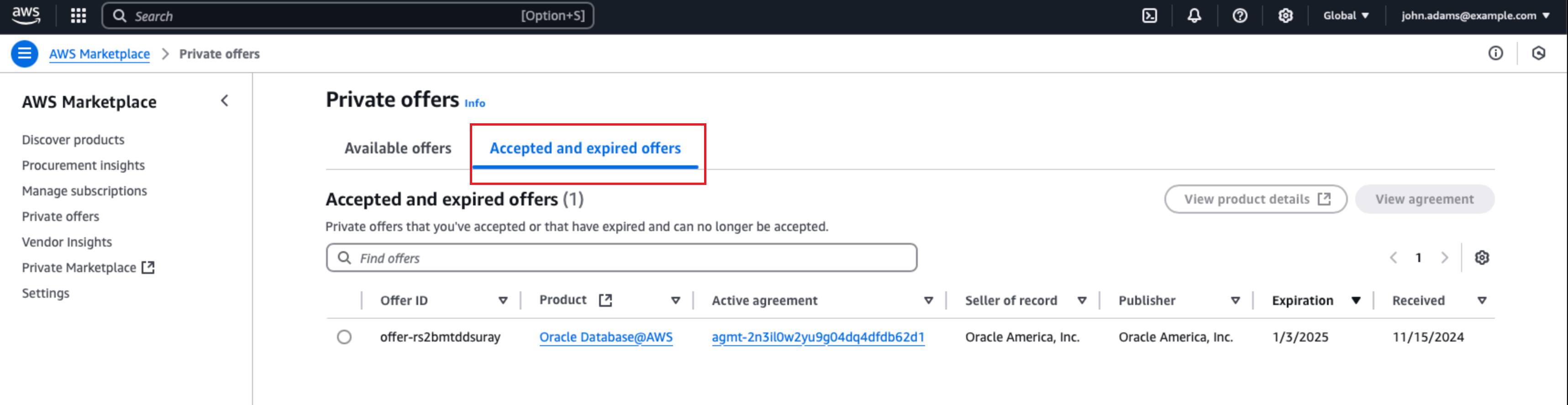
-
In the AWS console, search for Oracle Database@AWS and go to the product page, which has a View private offers link that directs you to AWS Marketplace.
After you complete the prerequisites, follow the instructions in this section. -
In the AWS console search field, search for "AWS Marketplace" and navigate to the AWS Marketplace.
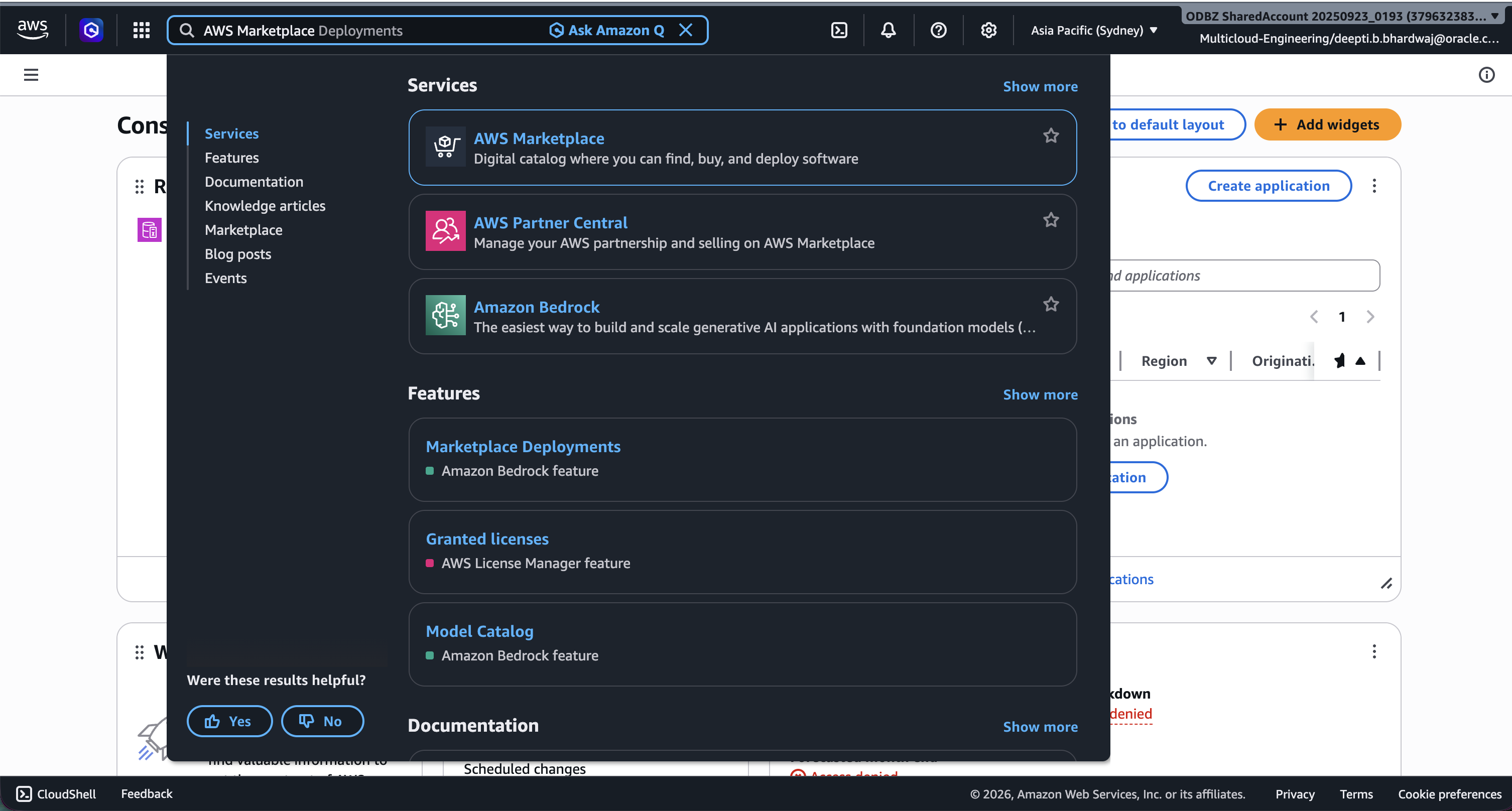
-
In the AWS Marketplace, select Discover products on the left, and search for "Oracle Database@AWS." Select the search result for "Oracle Database@AWS" and go to the product details page.
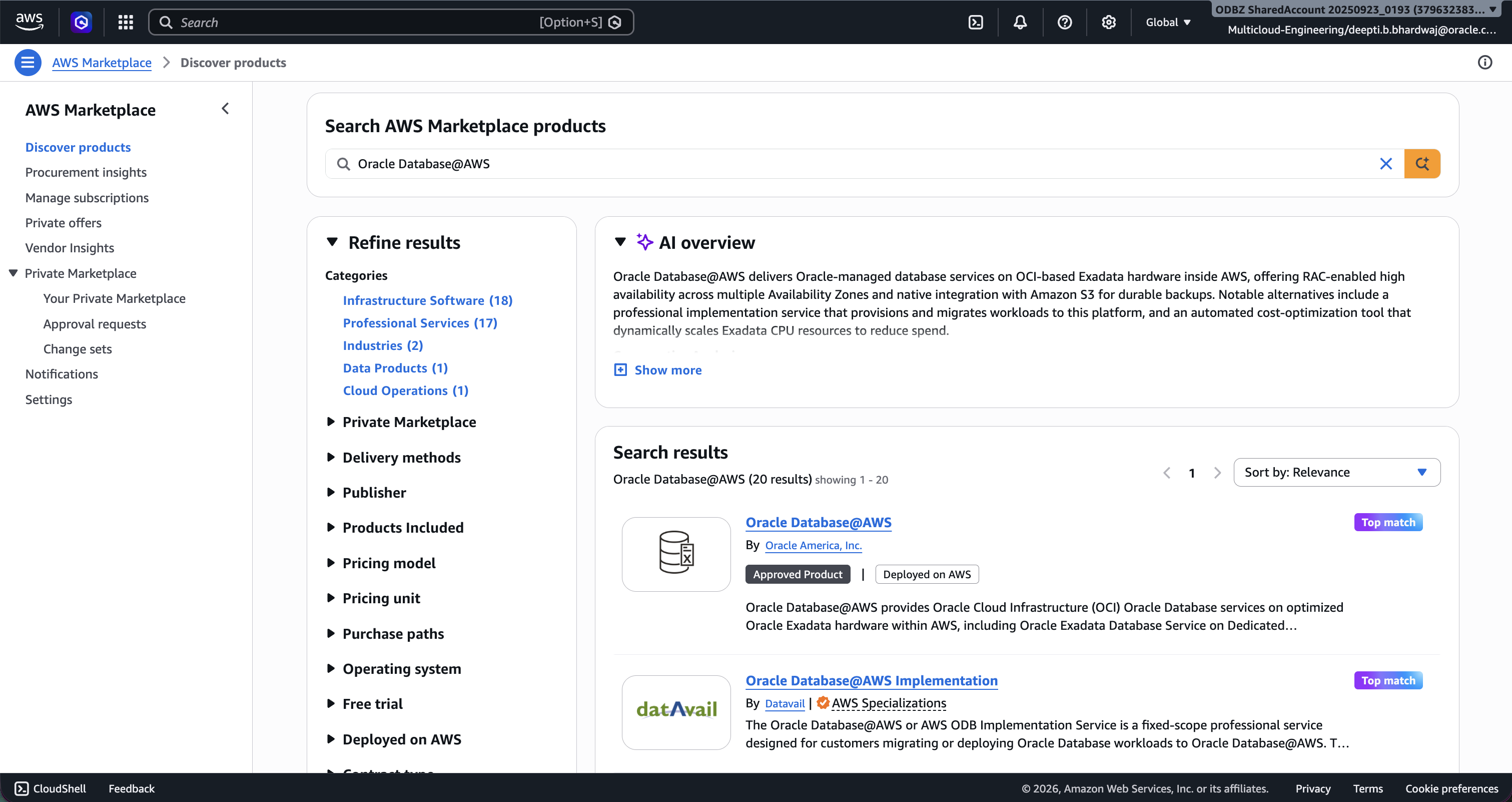
-
Select View purchase options to access the public offer.
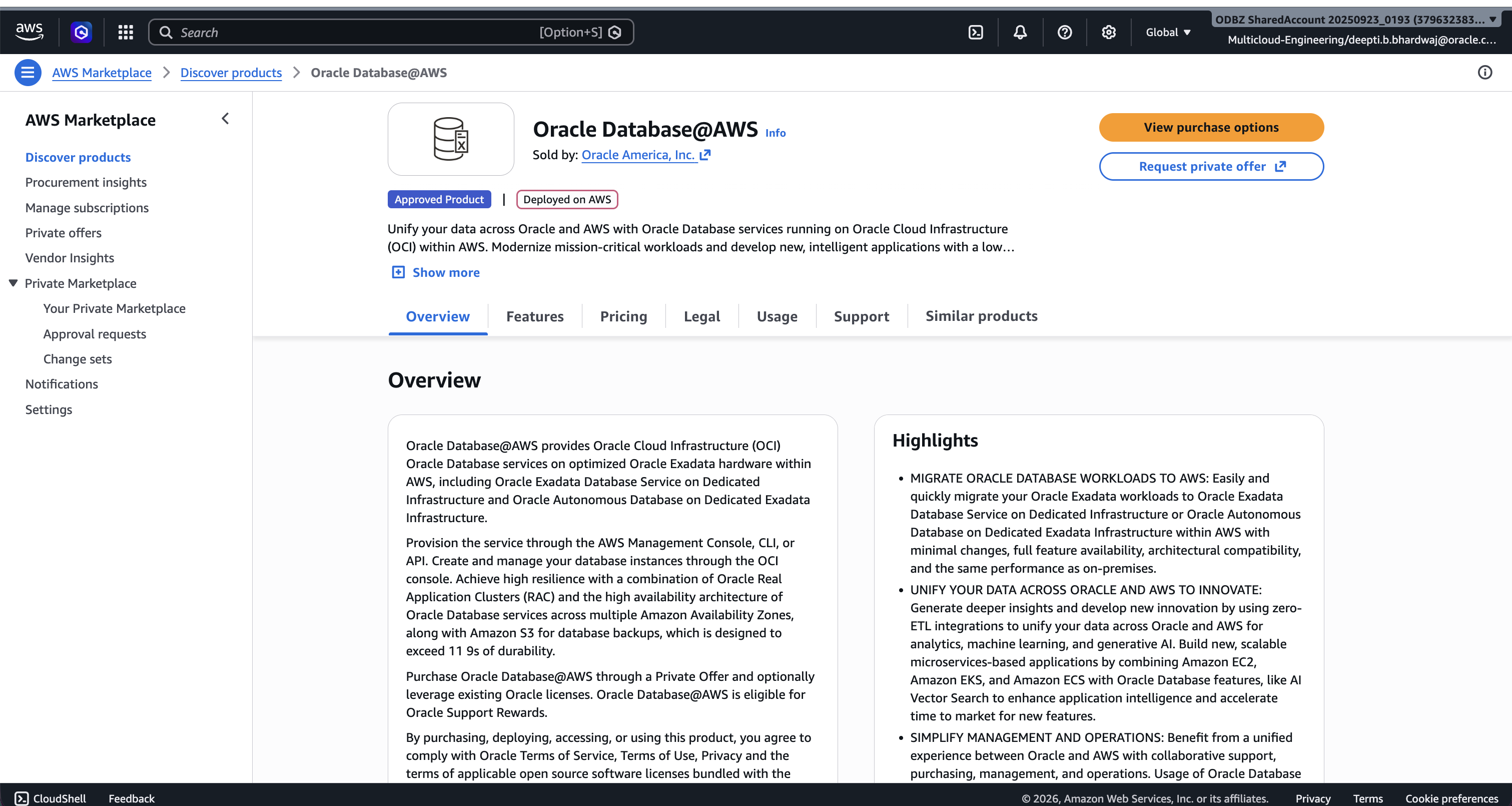
-
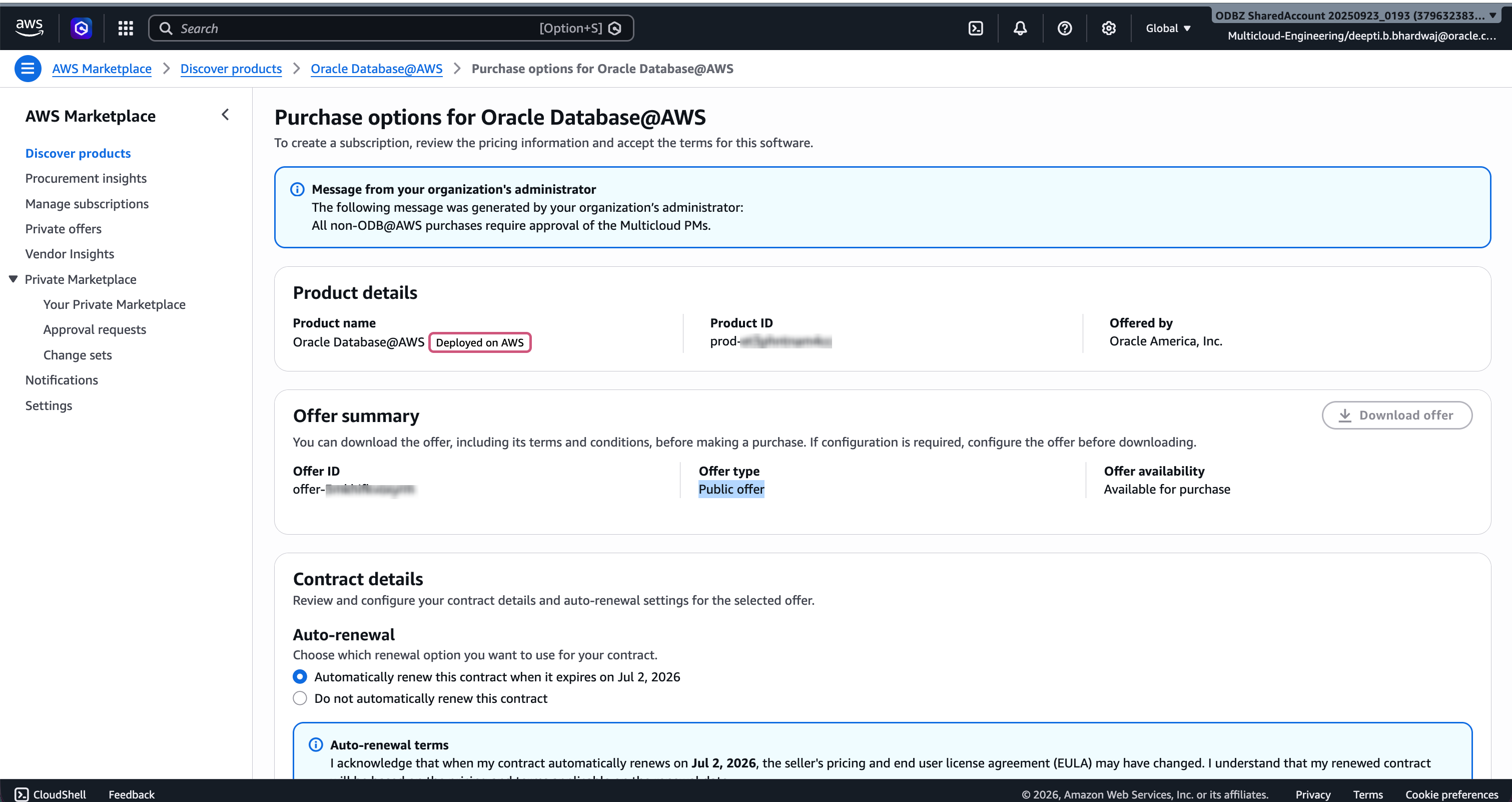
Review Product details, Offer summary, and Contract details.
-
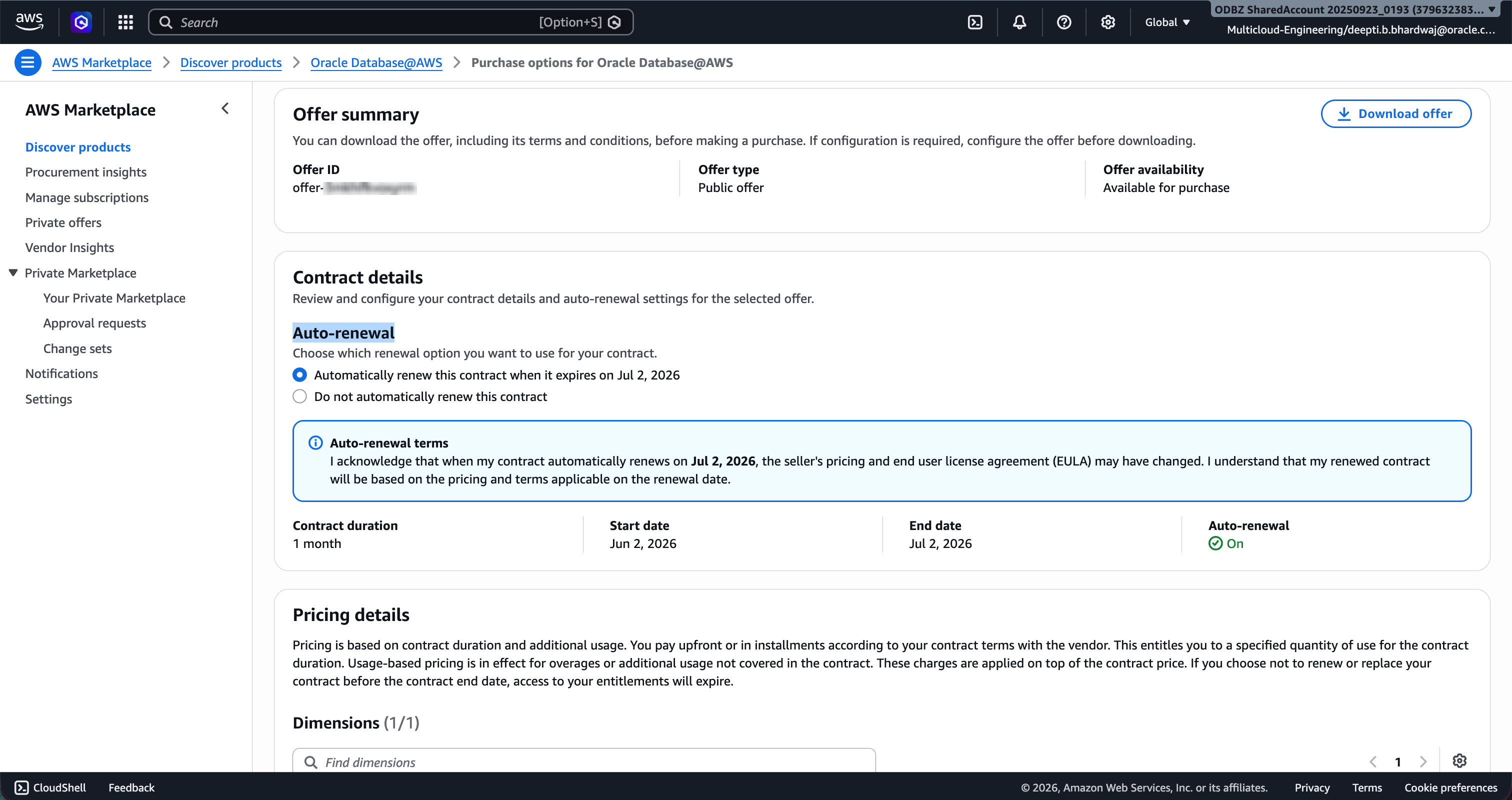
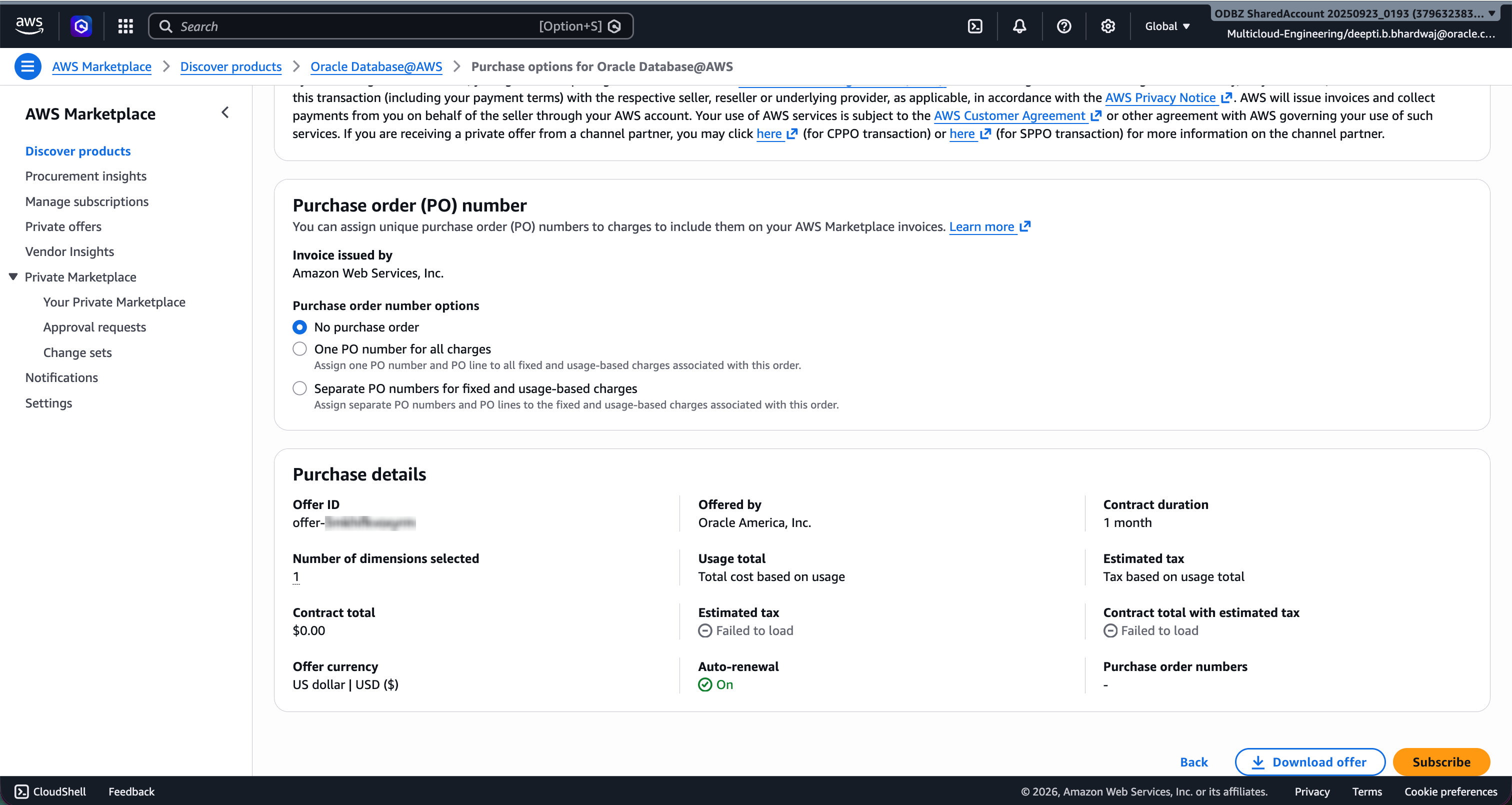
Review Auto-renewal and Pricing details, and then select Subscribe.
-
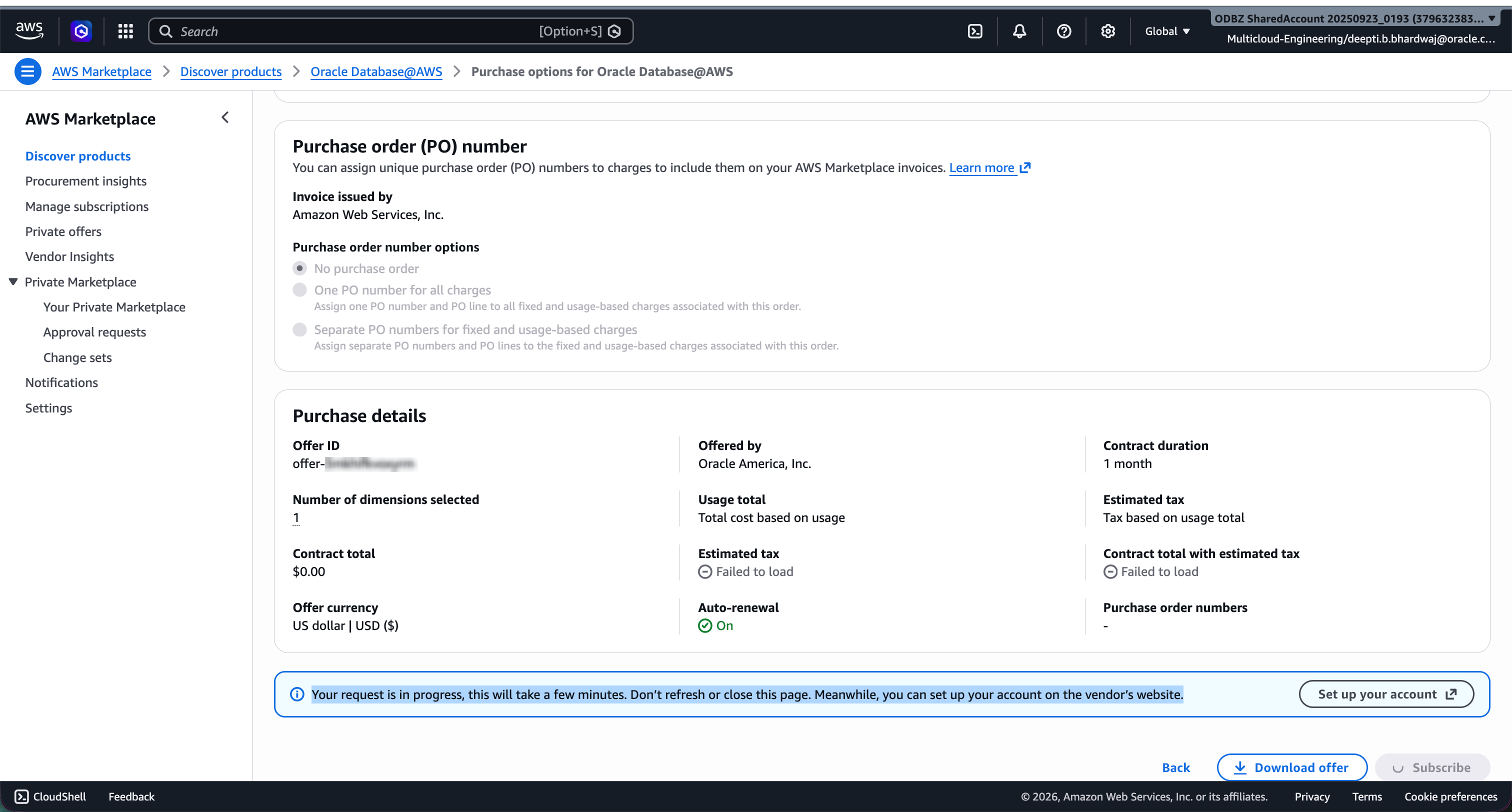
After selecting Subscribe, wait for few minutes for the purchase to be completed.
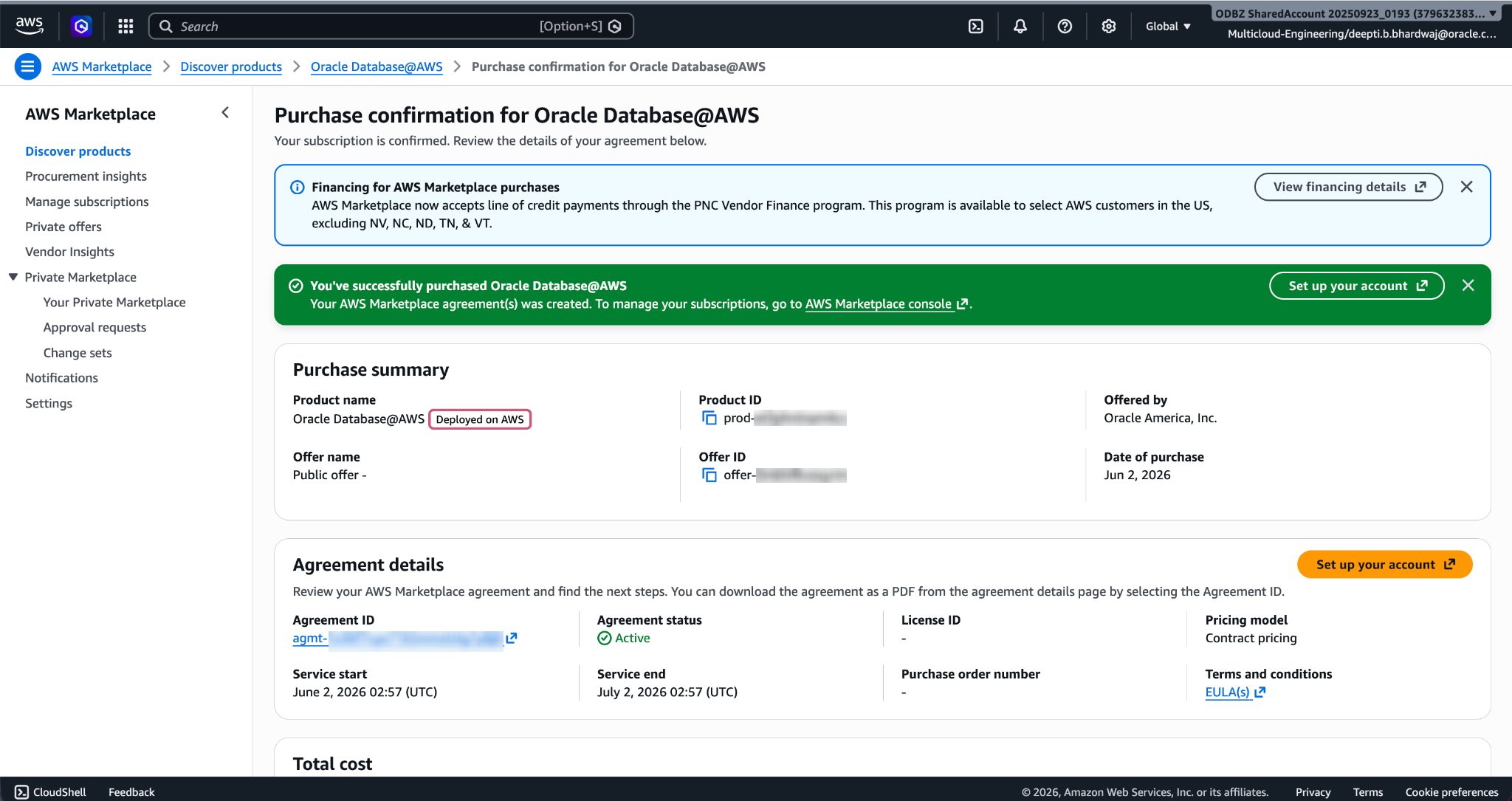
-
You can select Manage subscriptions under AWS Marketplace to view the active subscriptions for Oracle Database@AWS.
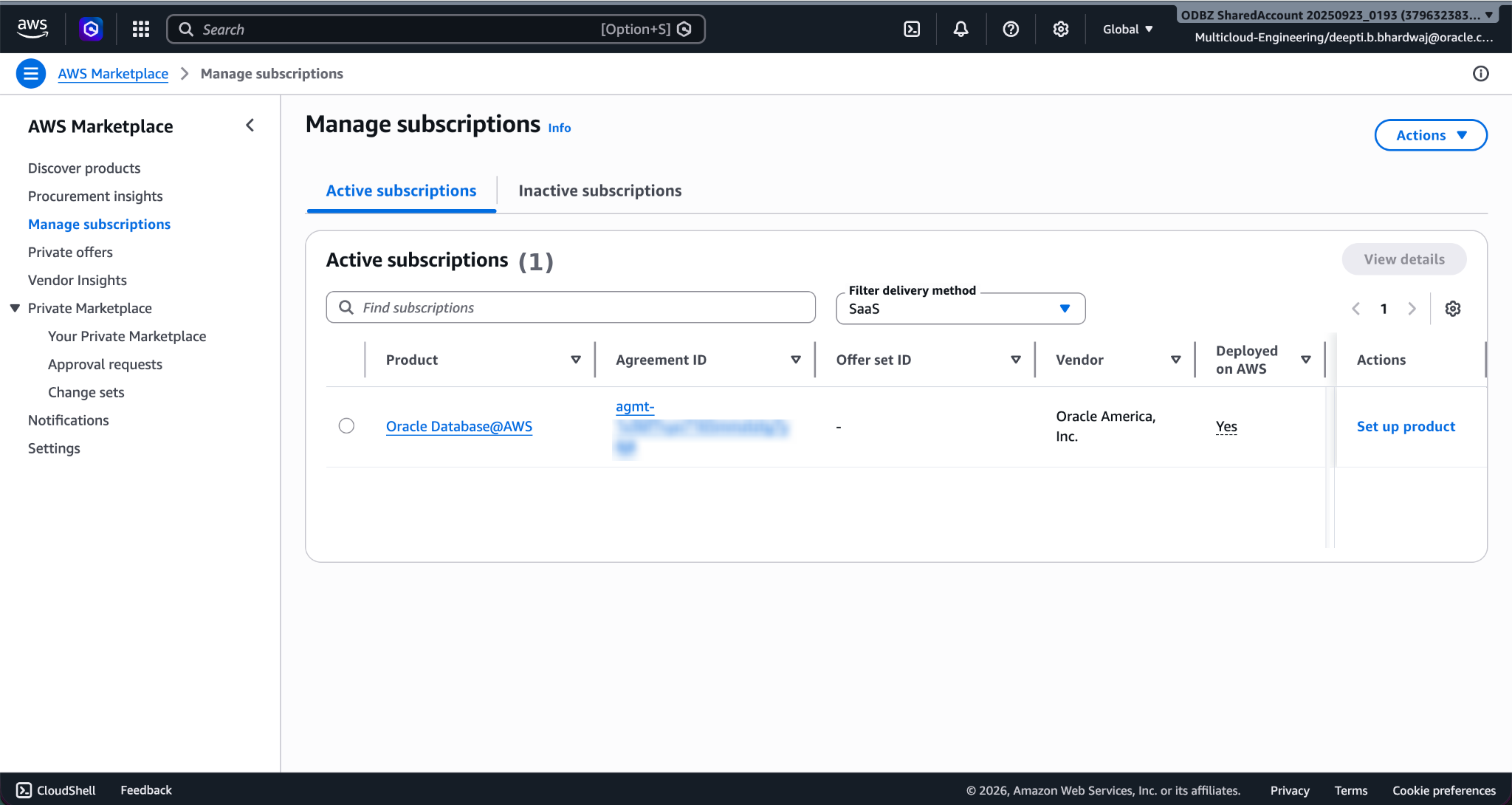
-
In the AWS console search field, search for "AWS Marketplace" and navigate to the AWS Marketplace.
Verify Subscription
An accepted private offer creates an Oracle AI Database@AWS subscription in your buyer account.
To verify your subscription details:
-
Navigate to AWS Marketplace on your AWS console.
-
Select Manage subscriptions.
- In the Active subscriptions tab, search for Oracle AI Database@AWS.
-
Select the Product to check the details and Active agreements.
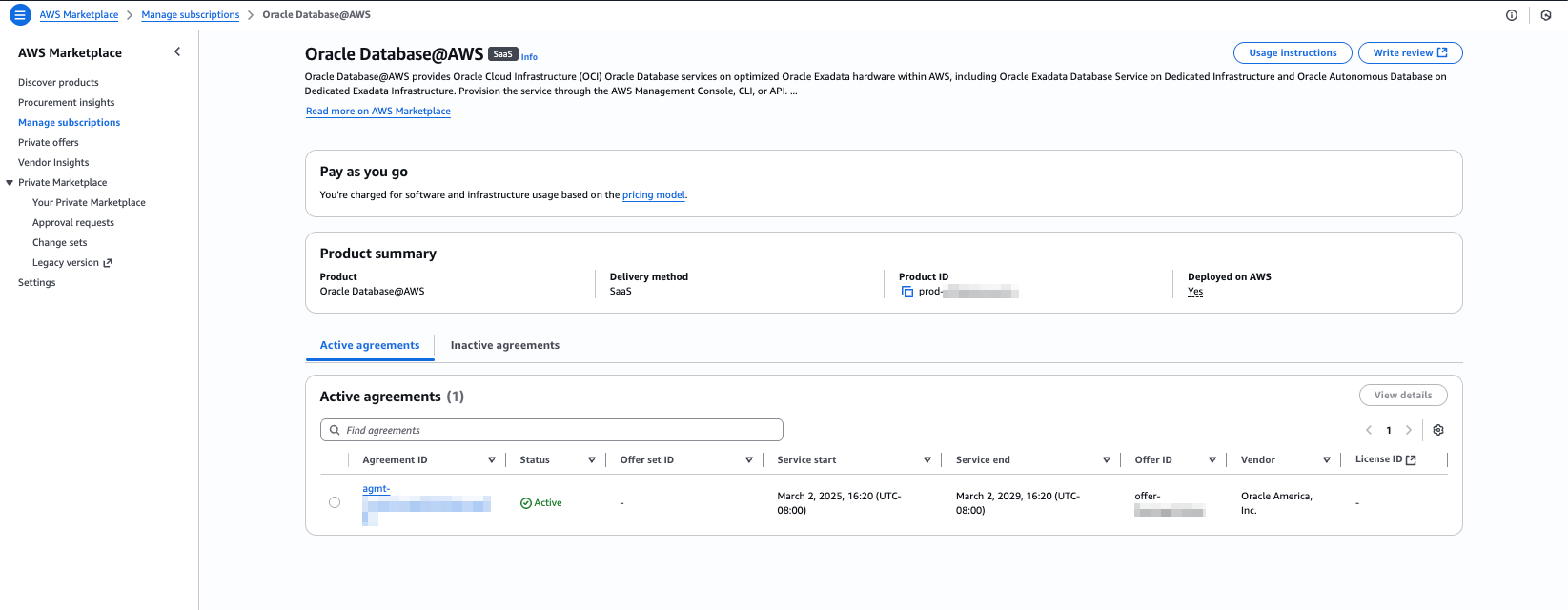
What's Next?
Look for an email from Oracle with the subject line Action Required: Welcome to New Oracle Cloud Service Subscription(s), which might take up to 24 hours. Continue onboarding by completing the steps in Link, after receiving the email.